

1. Start with your employee workspace
Employee Home brings your personal work and the routes into My Focus together. Identify what needs attention, then open the authoritative module to review details and complete the action. This Coming Soon guide covers the refreshed Home experience. Available sections depend on your employee context, access, module licences and company configuration.
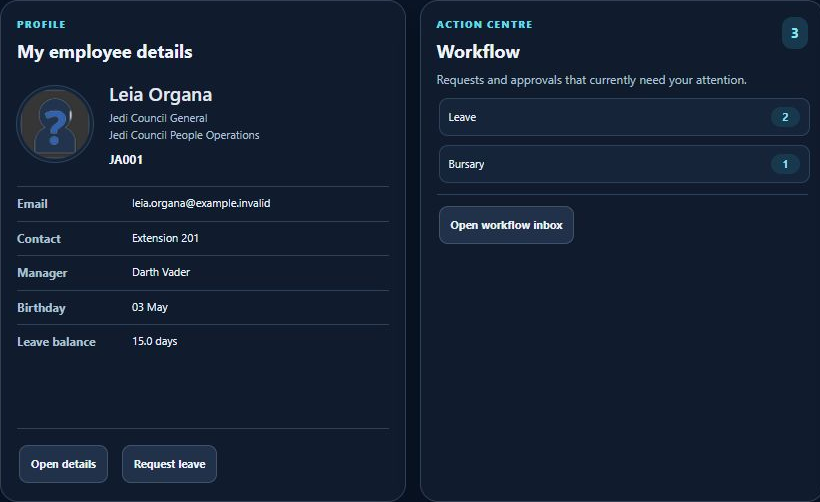
The greeting identifies the signed-in employee. The summary separates items awaiting your action, items awaiting approval, notifications, assigned tasks, polls and news. A total is an entry point for investigation; it is not evidence that a request has been approved or completed.
2. Follow the next useful action
- Open Home after signing in and confirm the greeting and employee context are yours. If the wrong person appears, stop and contact your administrator.
- Review Awaiting your action and open the related inbox. Read the request and supporting detail before choosing a native workflow action.
- Use My details or Open details to review your employee record. Request leave enters the leave module; a Home tile does not submit a leave request.
- Use My team only when the manager route is available to your account. Team access comes from the source module.
- Return Home after completing a source action and refresh when needed. Recheck the source status if a tile has not yet changed.
For example, Leia Organa may see a leave item awaiting action. She opens the workflow inbox, checks the request and follows the permitted action there. Opening the inbox alone changes no approval status.
3. Use the sections available to you
| Control or prerequisite | Use and boundary |
|---|---|
| Home and profile | Review the employee summary and action centre. Open the native record for corrections. |
| Menu and favourites | Find permitted screens and revisit saved routes when enabled. A favourite does not extend access. |
| Workflow and reports | Open the inbox or an authorised report. Required criteria and permission checks still apply. |
| Documents and policies | Follow the native acknowledgement process where configured. Viewing and acknowledging are separate actions. |
| Calendar and organisation chart | Review configured dates or reporting context. Availability depends on source permissions. |
| Leave learning and talent widgets | Use visible shortcuts to their source modules. Hidden widgets can reflect configuration or a missing licence. |
Learning, performance, payslip and policy information can have different update schedules. Check the source record and its date before relying on a summary. Do not infer a balance, result or entitlement from an unavailable card.
4. Handle missing or expired information
If a section reports expired context, sign in again through the normal application entry and reopen Home. If it persists, record the section label, time and a privacy-safe description for support. Do not repeatedly submit a linked request because its Home summary appears unchanged.
- Missing tab: ask the administrator to check Home settings, source access and licensing.
- Unexpected count: compare with the source inbox under the same employee context.
- Link without records: review filters and source permissions.
- Stale summary: use the native source record for the current decision and report the mismatch.
The default deferred-widget path still requires a separate live context check before a demonstration or rollout. Illustrations explain the layout; they do not establish live calculation, approval, submission or export acceptance. A screenshot cannot prove a transaction saved.